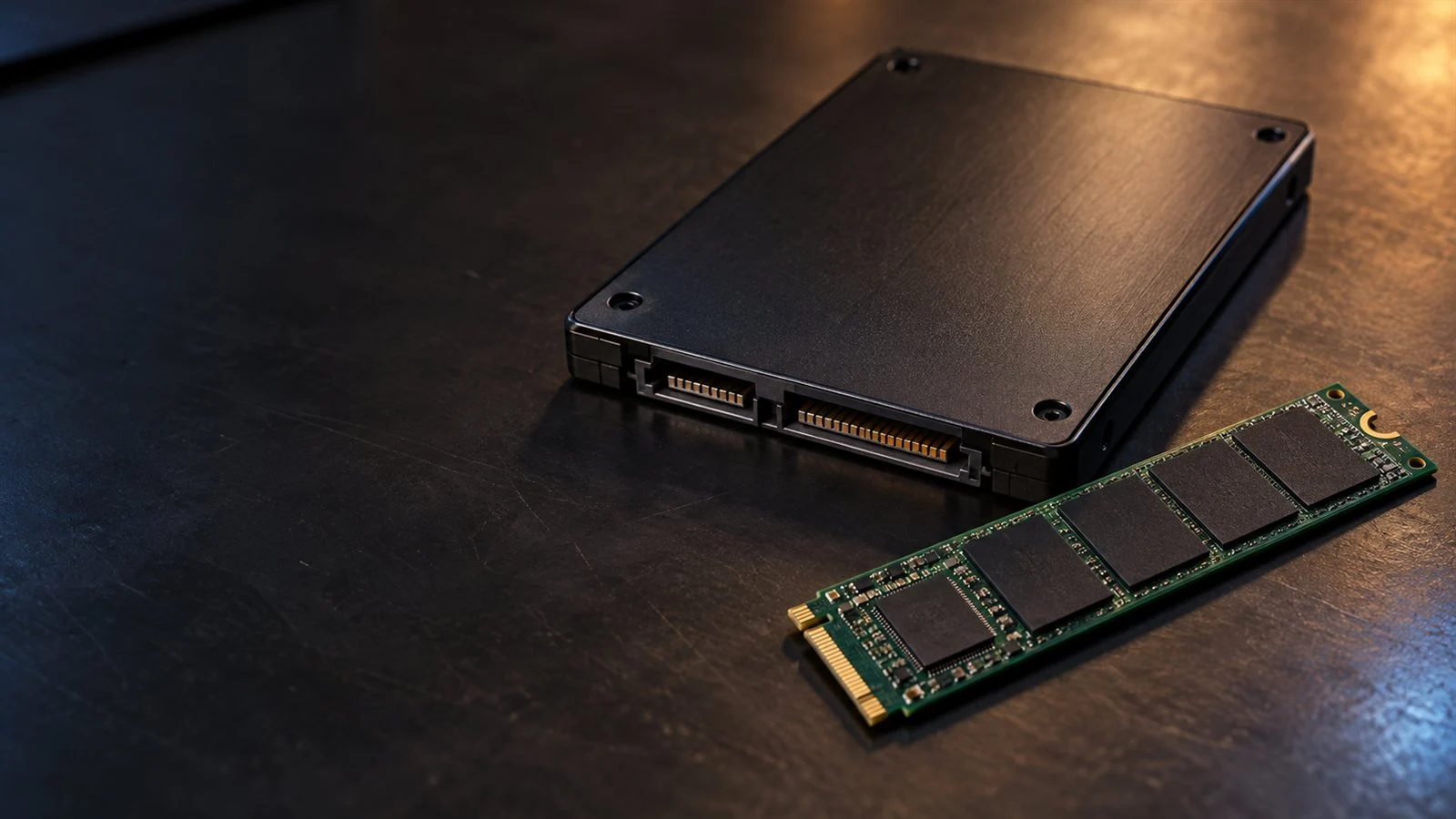
GARFIELD, NJ · SERVING NORTH JERSEY
SSD upgrade & cloning service.
Keep the computer you like, with storage that better suits your day. We help select and install a compatible SSD, with suitable cloning options for your Windows setup, programs and files.
SSD capacity & compatibility checks
Cloning to preserve your familiar setup
Startup, storage & application checks
Drive errors or missing files? We review the source before treating it as a routine upgrade.
A FASTER OR LARGER DRIVE FOR YOUR PC
Benefits of an SSD upgrade.
A storage upgrade can make a useful computer feel more responsive when the drive is the bottleneck. We look at whether you need quicker loading, more capacity or both.
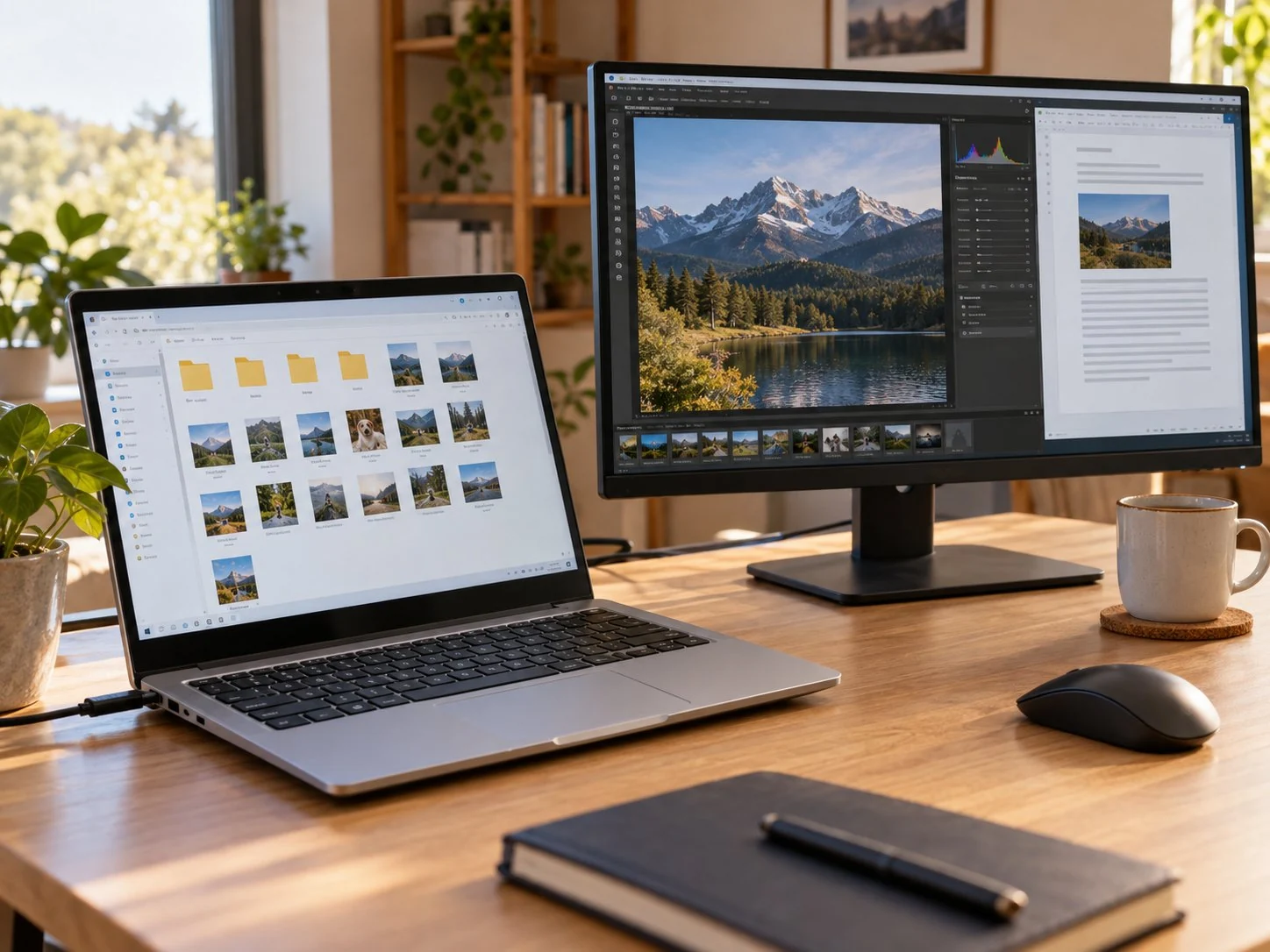
Less waiting for Windows to load
Moving Windows from a mechanical hard drive to a suitable SSD can reduce waiting during startup and drive-bound loading. The rest of the system still affects the result.
Quicker application and file loading
An SSD can help with tasks that spend time waiting on the drive, from opening applications to loading large projects.
Capacity for growing files and games
If a smaller SSD is running out of room, a larger compatible replacement can make space for your photos, games and work while retaining a familiar setup where cloning is suitable. We plan around current usage and expected growth.
A familiar setup where cloning fits
A suitable system clone can carry your existing environment to the new drive. We assess the source and migration plan before promising what can transfer.
SSD SELECTION STARTS WITH YOUR COMPUTER
SATA, NVMe & SSD compatibility.
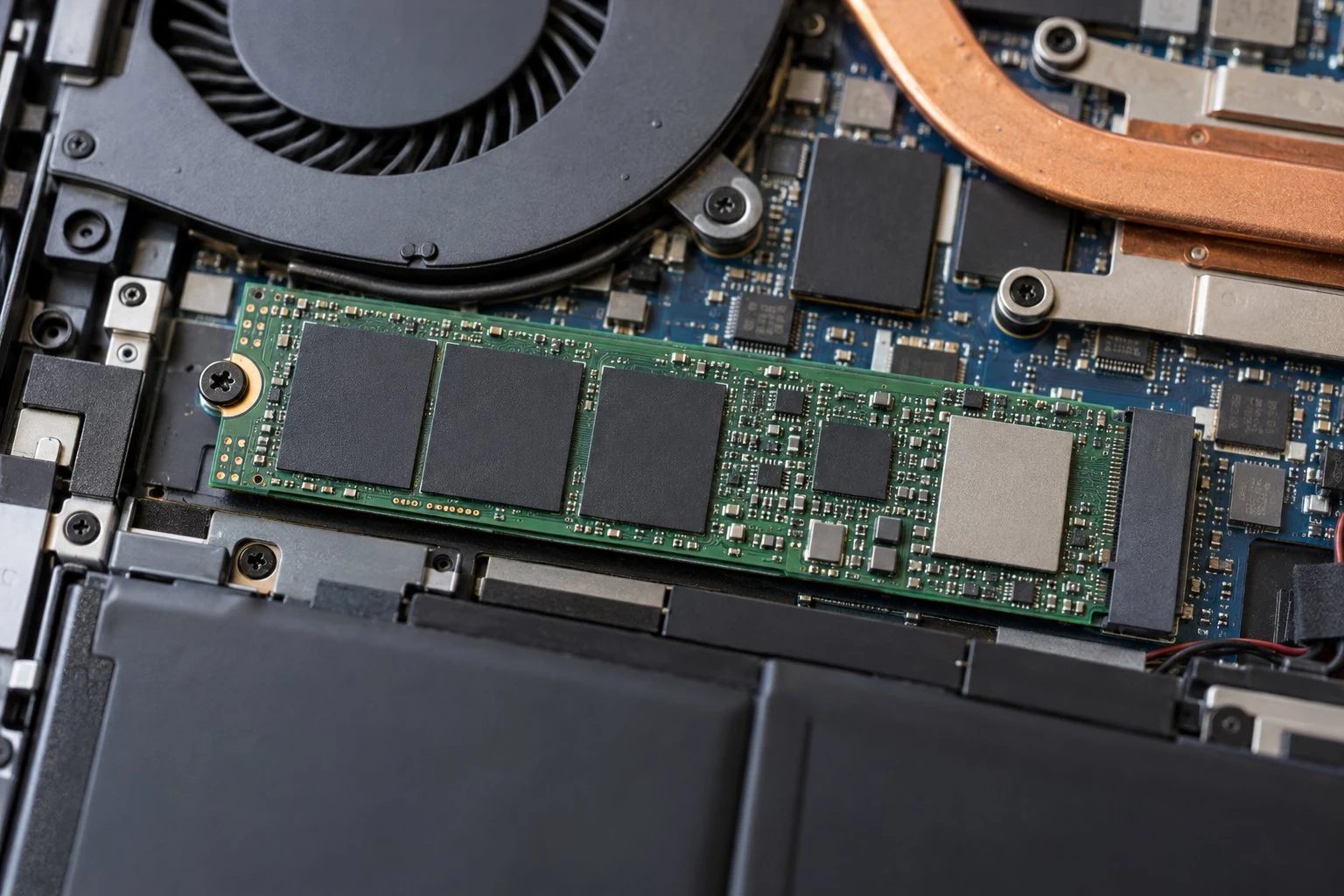
We check your exact desktop or laptop model, available bay or slot and supported drive type. An SSD that fits physically is only part of the answer.
The right connection and format
SATA and NVMe use different interfaces. M.2 describes a physical format, not a guarantee of NVMe support. Drive length, connection and firmware support matter together.
Moving from a SATA SSD to supported NVMe storage can help with large file transfers and other drive-heavy work. If your everyday applications already load well from an SSD, the difference may be less noticeable.
Capacity and the existing layout
We check used space, partitions and the proposed drive. Matching advertised capacities alone does not establish that the existing system layout will fit.
Adding storage or replacing the boot drive
Adding a second drive in a supported slot can provide room for games, projects or other files while Windows stays on its current drive. It doesn't make that existing boot drive faster. Replacing the drive Windows starts from needs a cloning or fresh-installation plan.
Laptop access and replaceable storage vary by model. Some systems have one usable slot or integrated storage; we check before recommending parts.
KEEP THE SETUP OR START FRESH
SSD cloning, file transfer or a fresh installation?
We agree the migration approach before work. A system clone aims to retain a working environment; copying documents alone does not move installed programs and Windows.
Encrypted storage needs an access plan
We discuss authorized access to encrypted data before work. Keep passwords and recovery keys out of the public request form; access arrangements are handled separately.
Keep the source drive as it is for assessment. You don't need to format it or remove encryption just to prepare for an SSD upgrade.
Cloning is not an ongoing backup
We review any existing backup and the files that matter most. A one-time migration does not replace continued backups or guarantee that every file is intact.
Failing drive, unreadable storage or missing files?
Cloning needs readable storage; it does not repair a failing drive. We assess problem drives before a routine upgrade. If recovering files is the priority, start with Data Recovery; an unexplained computer fault can begin with Diagnostics.
SSD INSTALLATION & MIGRATION HANDOFF
SSD startup, capacity & application checks.
We check more than whether the new drive appears in the computer. We agree your priority files and applications, then explain the result and any exceptions.
Startup from the intended SSD
Confirm the computer starts from the replacement drive and the expected system is available.
Usable storage and partitions
Check the expected usable capacity and agreed layout, with any differences explained.
Important files and applications
Open agreed priority files and applications, alongside relevant drive and system checks.
A clear plan for the old drive
We discuss what happens to your old drive, including returning it to you or erasing it if you request that separately.
Keep the old drive or another usable copy until the migration has been checked; don't erase your only remaining copy.
BEFORE YOUR STORAGE UPGRADE
SSD upgrade & cloning questions, answered.
Tell us whether you want more space, quicker loading or help with an existing drive problem.
Will an SSD fix every slow-computer problem?
No. Storage-bound loading may improve, but CPU or RAM limits, heat, software problems and network delays can remain. We look at what is actually slow before recommending a drive.
Can you install an SSD I already own?
Send the exact drive model and your computer model, if known. We review compatibility, capacity, condition and the migration requirements before confirming whether we can install it.
Does an SSD mean I no longer need backups?
No. SSDs have no moving drive mechanism, but any storage device can still fail or lose data. Keep a current usable backup. Neither a new SSD nor a successful clone is a permanent data-preservation guarantee.
What if I am moving to a different computer?
That is a different transition from upgrading storage in the PC you keep. See New Computer Setup & Data Transfer for that request.
ELITEPC NJ · GARFIELD
Request an SSD upgrade in North Jersey.
Tell us about the computer you want to keep and the storage change you need. We discuss the compatible SSD, installation and cloning or fresh-setup scope before you proceed.
Service is by appointment. A request does not confirm a visit or authorize work; we'll contact you first.
HELPFUL DETAILS TO SEND
SSD upgrade & cloning details.
Computer model, current drive and used space, if known
Desired capacity or loading problem
Important applications, drive symptoms and backup status
Already-owned SSD, budget and service ZIP code
We explain the drive and installation, your chosen cloning, file transfer or fresh setup, and any application work. The quote also takes account of access, the amount of data and the source drive's condition; any separate recovery work is discussed first. Unknown specifications are fine; no disassembly or part purchase is needed to inquire.