ElitePC NJ · Garfield & North Jersey
Computer Diagnostics for Unexplained PC Problems
Computer freezing, restarting or refusing to start? ElitePC NJ investigates desktop, laptop and gaming PC problems to help you understand what needs attention before you spend money on parts.
- Narrow Down Hardware and Software Problems
- Avoid Buying Parts on a Guess
- Understand Your Repair Options
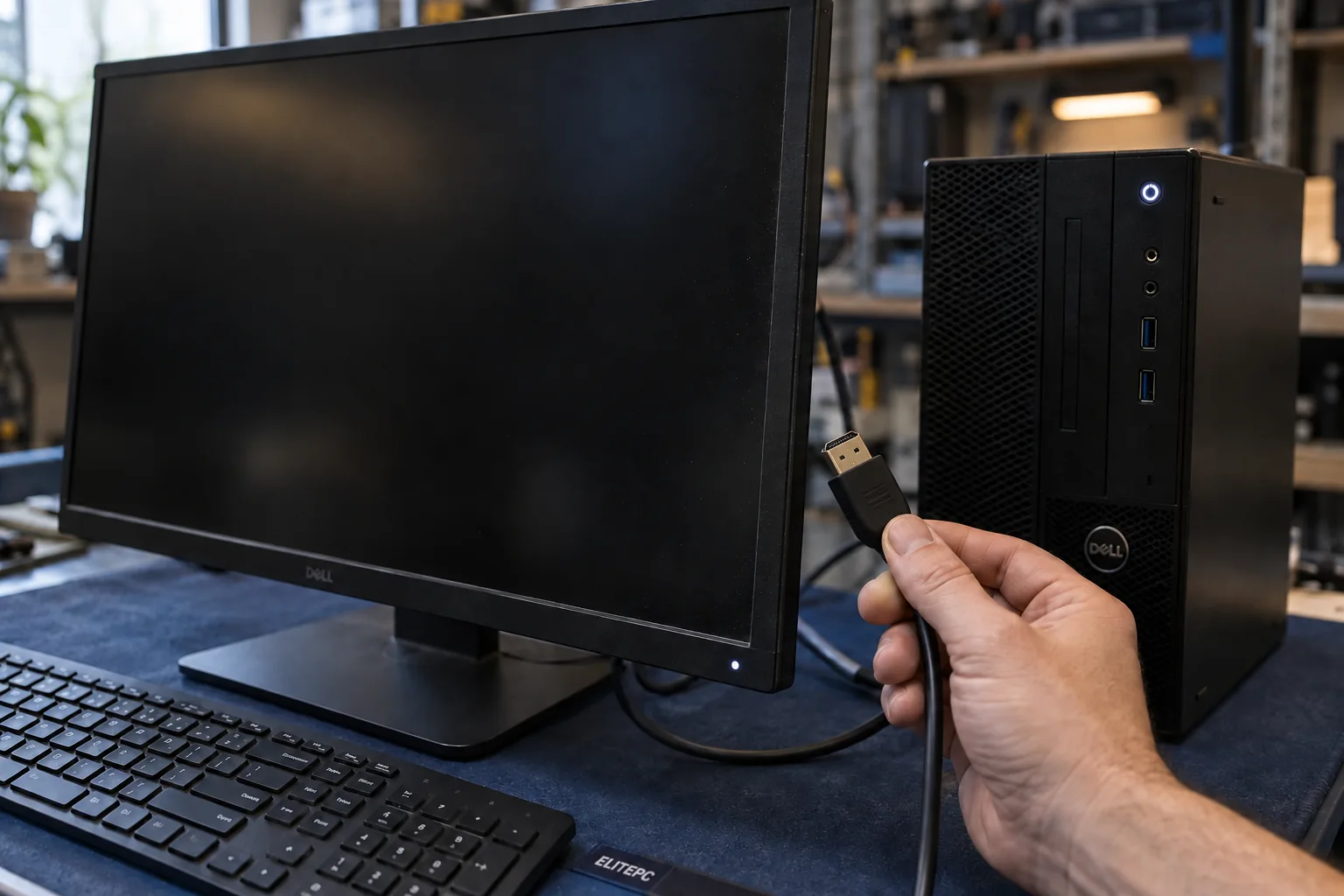
A blank screen is a useful clue, but it does not identify the faulty part.
Computer diagnostics for home and business users in Garfield and across North Jersey. Service is by appointment.
What Is Your Computer Doing?
What happens when you press the power button? Whether the computer stays off, shows a blank screen or gets stuck loading Windows helps narrow down where to begin.
Which Looks Like Your Problem?
No Lights or Fans
Nothing appears to happen when you press the power button.
Power, but No Picture
Lights or fans run, but the display stays blank.
Startup Stops Early
The computer gets stuck at a logo or warning, beeps during startup, or stops while loading Windows.
It Fails During Use
The computer starts, then freezes, restarts or loses the display.
Where Does Startup Stop?
A computer that cannot finish its first startup checks has a different starting point from one that reaches Windows and then fails. Tell us about any lights, fan activity, beeps or messages, along with a recent move, power interruption, update or hardware change. A blank screen or failed startup alone does not mean the motherboard needs replacing.
Freezes, Crashes and Faults That Come and Go
Does the computer freeze after an hour, restart in one program or fail when waking from sleep? The timing, task and connected accessories can help explain why it works sometimes and fails at others. Heat-related and intermittent faults may not appear in a short test. An error photo can help too, with private information hidden.
What Computer Diagnostics Can Check
Diagnostics looks at the hardware and software involved in your problem. The symptoms guide which checks are useful, so the investigation stays focused on what is going wrong.
Power and Startup
Power connections, the response to the power button and where startup stops.
Memory and Storage
Working memory (RAM) and storage-drive problems that can cause crashes, errors or trouble opening files.
Software and Drivers
Recent updates, recorded errors and programs or device drivers that may be disrupting normal use.
Cooling and Workload
Problems that appear as the computer warms up or while it runs a particular game or task.
A built-in hardware test is one piece of the picture. Even a passing result can leave a software problem or an occasional crash unexplained.
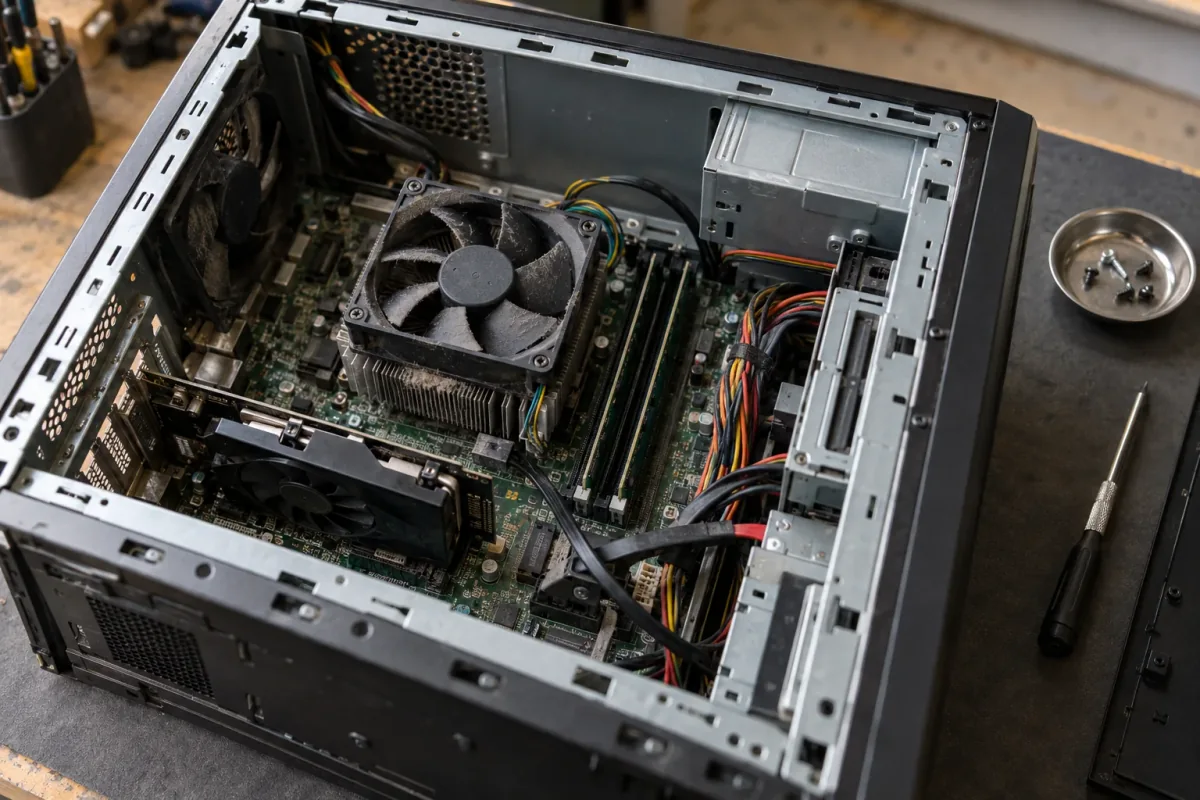
Memory, cooling and internal connections can all be relevant to an unexplained fault.
Diagnosing a Gaming PC Problem
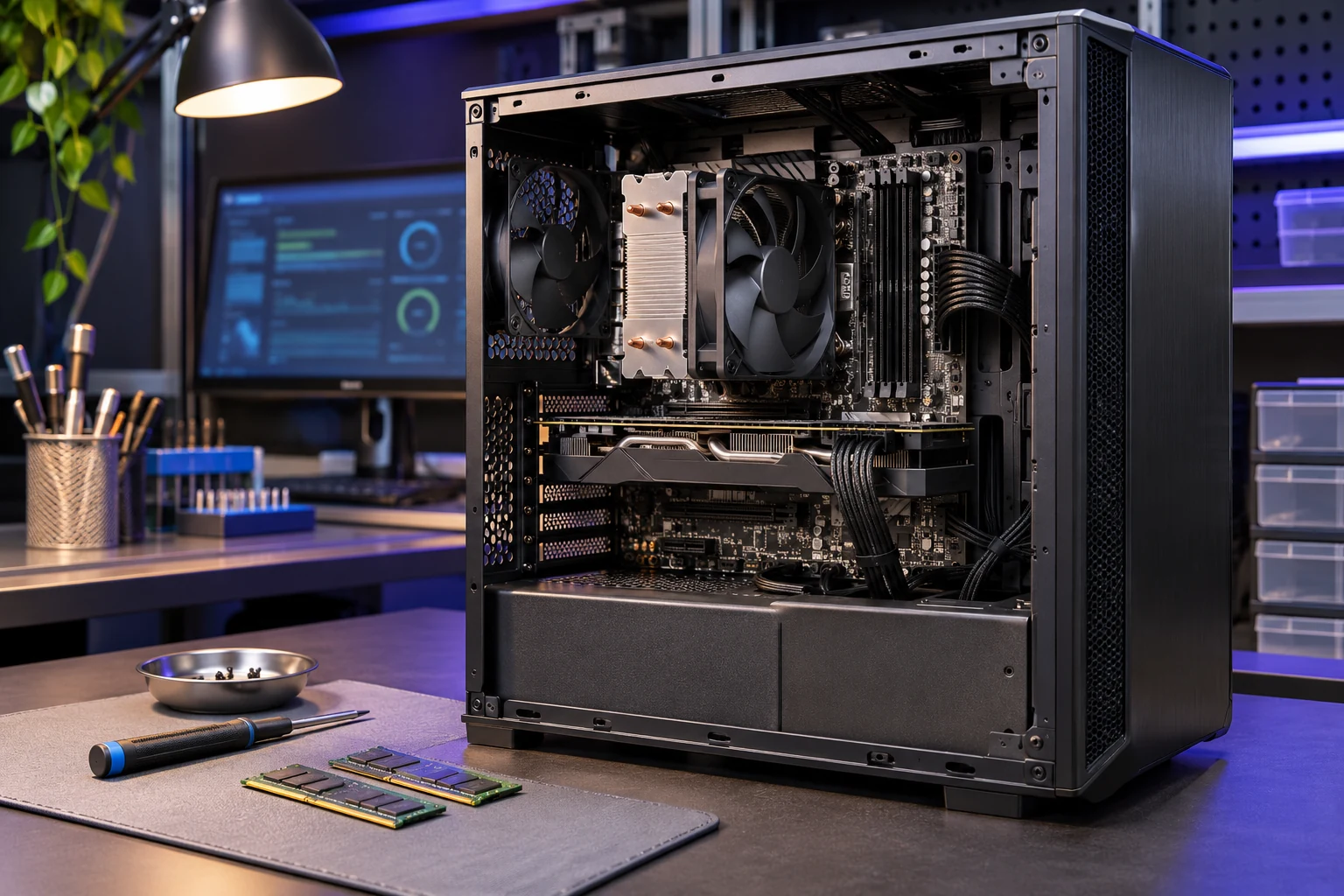
If your PC crashes during a game, tell us which game, the settings you use and the hardware in the computer. Mention any changes to clock speeds or power settings, too. These details help distinguish a fault from a system that simply needs better game performance.
For crashes and other failures, choose Gaming PC Repair or Gaming Laptop Repair. If the computer runs reliably and you want higher frame rates (FPS) or smoother gameplay, see Gaming Performance Optimization.
Benefits of Computer Diagnostics
Understand what testing shows, where problems may remain and which repair or upgrade options are worth considering.
Virus and Malware Detection
Look for malware and unwanted software that may be affecting performance.
Performance Bottlenecks
Assess performance to help distinguish a system limitation from a fault.
Fewer Unnecessary Replacements
Use diagnostic findings to guide the repair instead of replacing parts on a guess.
Informed Repair and Upgrade Decisions
Understand the available options and their costs before deciding what to do next.
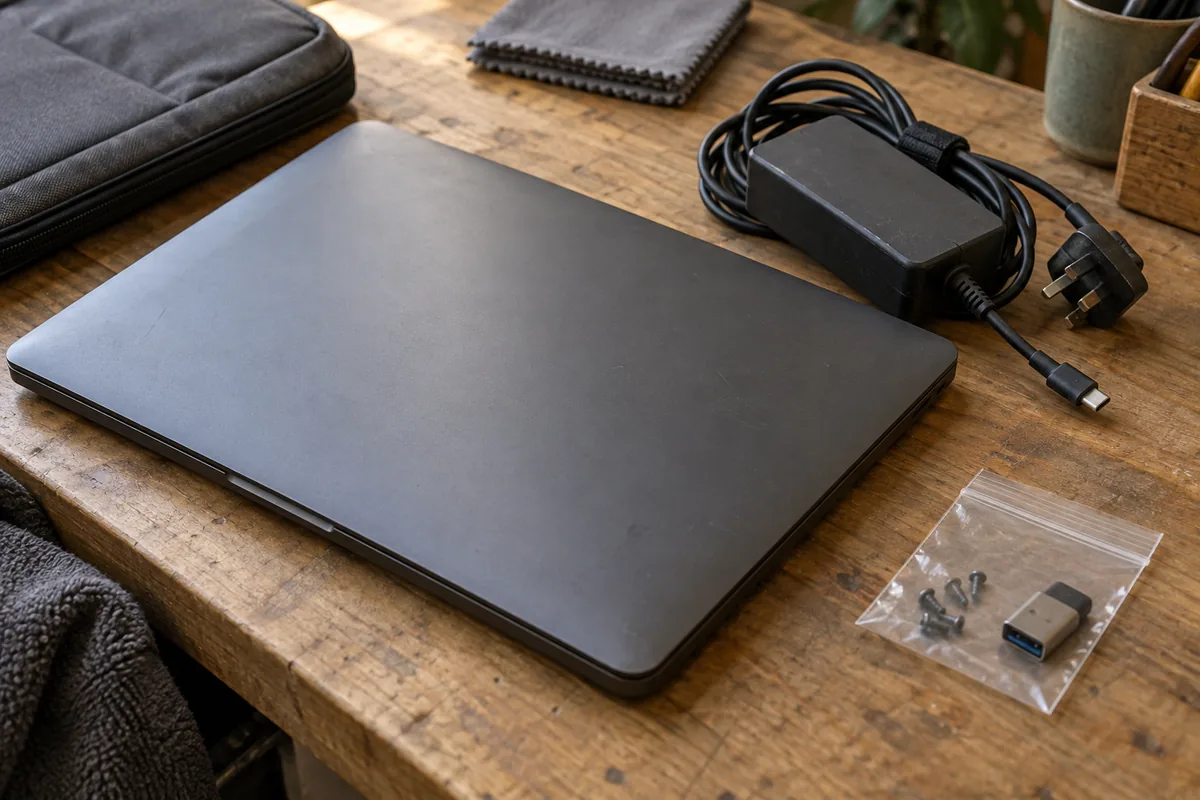
The charger and accessories used with your laptop can help explain when a problem appears.
Does Your Laptop Fail Only in Certain Situations?
Some laptop problems appear only on battery power, while charging or with a dock or external display connected. Tell us what changes when you use a different setup.
- Power: Does it happen on battery, while plugged in, or both?
- Accessories: Which charger, dock, display or other device is connected?
- Timing: Does it fail at startup, after sleep or after running for a while?
These clues help narrow down the investigation before assuming the battery or charging port is faulty. If the charging connection itself is loose, damaged or unreliable, see Laptop Charging Port Repair.
Understand the Results and Your Repair Options
The results help you decide whether to repair the computer, investigate further or choose a more suitable service.
If the fault does not appear during testing, that does not necessarily mean it has gone away. More investigation may be needed before a replacement part makes sense.
Depending on the findings, the next step may be a PC Tune-Up, Virus & Malware Removal or Overheating PC Repair. Motherboard Repair becomes relevant when testing points to the board, rather than because the screen is blank.
Making Sense of the Findings
What Was Checked
Which tests and conditions were used to investigate your problem.
What the Tests Showed
What happened during testing and whether it matched the fault you reported.
What Is Still Unclear
Any unanswered questions, especially when the problem comes and goes.
What You Can Do Next
Whether a repair, more testing or another service is the next practical step.
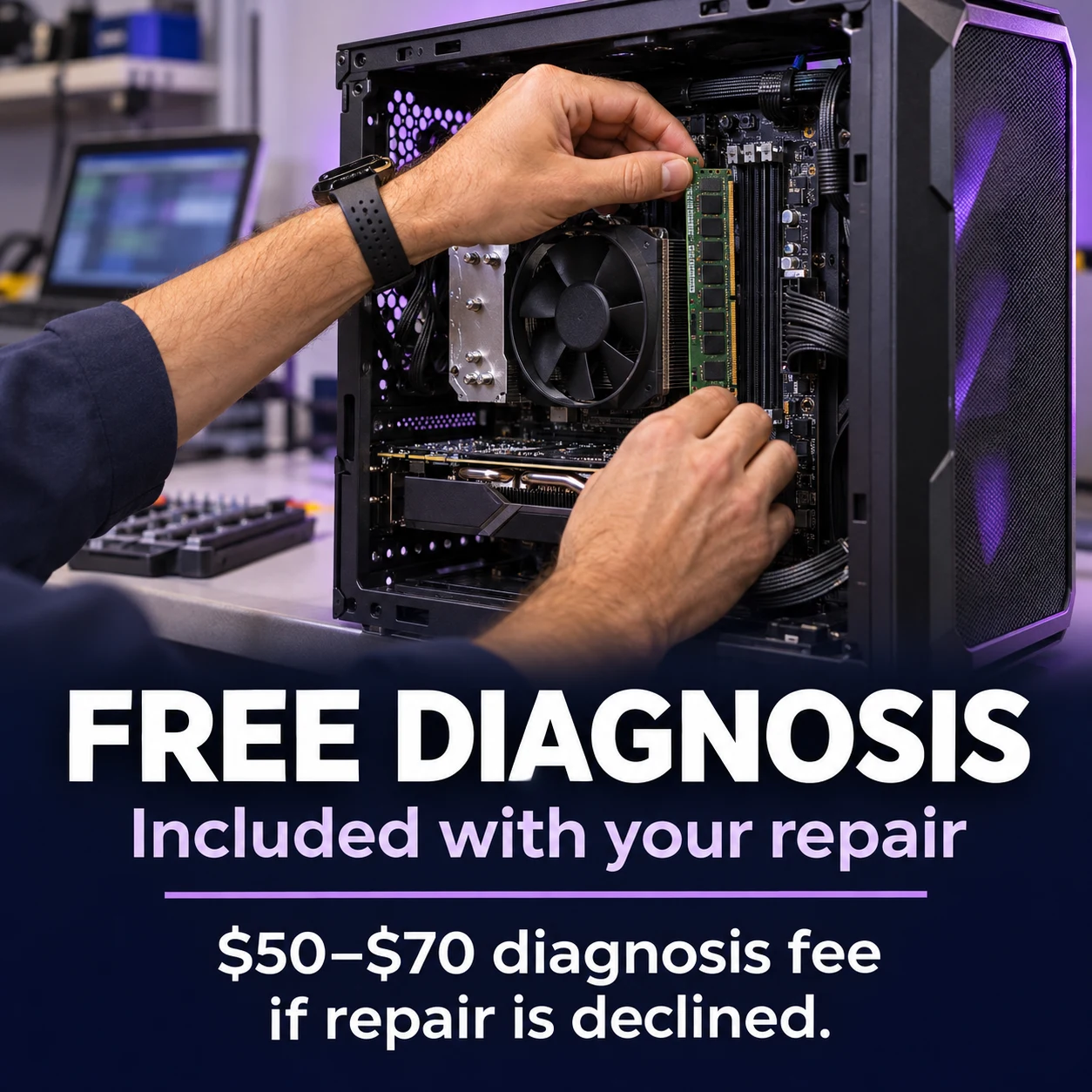
Free Diagnosis When You Proceed With Repair
If ElitePC performs the approved repair, your diagnosis is included at no separate charge.
Only if you decline the repair after diagnosis:
- $50 Standard computers
- $70 More complicated gaming computers and laptops
Help Us Get Started With Your Computer
You do not need to diagnose the problem yourself. A few details about the computer and what has changed will help us get started:
- The make and model, plus your Windows or other operating-system version if you know it.
- What goes wrong, how often it happens and what you are doing at the time.
- Recent updates, new parts or previous attempts to fix the problem.
- Any error messages or test results, and the charger or accessories involved.
- Which files matter most and whether you have a recent backup you can use.
Are the files your first priority?
If important files will not open or the drive may be failing, discuss Data Recovery before more testing, a reset or a Windows reinstallation. Even a reset that keeps personal files can remove your apps and settings.
For a work-owned computer, tell us who can approve the work and whether other devices at the business are having the same problem.
Keep passwords, recovery keys and private files out of your request. You can describe the files or programs you need to keep without sending them.
Computer Diagnostics Questions
Can My Computer Pass Its Tests and Still Have a Problem?
Yes. A pass tells you about the hardware and conditions that were tested. It may not explain a software issue or a fault that appears only after longer use or with a particular accessory. Share the test result along with the problem you are still seeing.
What If the Problem Only Happens at Home or During a Game?
Tell us which app or game is running, how long it takes for the problem to appear and which charger, dock, display or accessories you use. Those conditions can matter when a computer works normally elsewhere. Do not keep forcing crashes to gather evidence. If the fault does not appear during testing, more investigation may be needed before replacing parts.
Does a Blue or Black Error Screen Mean I Need a New Computer?
No. A Windows stop-error screen can be blue or black, depending on the version. Hardware, a driver or software can cause it, so the exact message matters. A blank screen with no error message is a different symptom. Share the message and any recent changes; the findings, repair cost and computer’s condition will help you weigh repair against replacement.
Can Computer Diagnostics Be Done Remotely?
Some software problems can be investigated through Remote Support if the computer starts, connects and can be accessed safely with your permission. A computer with no power, or a problem that needs hands-on hardware checks, will need a different arrangement.
What Should I Save From a Diagnostic Error Message?
Save the full error and any validation code, the test name and your computer model. A manufacturer’s hardware-test error is different from a Windows stop code, so include which test produced it. A photo is helpful if you hide account details and other private information before sharing it.
Garfield · North Jersey
Request Computer Diagnostics in Garfield
Tell us what is going wrong and anything you have already tried. Whether the computer will not start or the same crash keeps coming back, you can ask for help without knowing the cause.
ElitePC NJ is based in Garfield and serves Bergen County, Passaic County and North Jersey. Visits and drop-offs are by appointment. Send your request so arrangements can be confirmed before you travel.
Not Sure What to Write?
Start with your computer model and a short description of the problem. Add when it happens, anything that recently changed and whether your files are backed up.
Do not send passwords, recovery keys or private documents.