Gaming PC Crashes Under Load (2025): Fix Random Restarts, Black Screens & Freezes
Does your gaming PC run fine on the desktop—but crashes the moment a game loads, restarts mid-match, or goes to a black screen under load? You’re not alone. In 2025, higher power spikes (especially on modern GPUs), aggressive boosting, and memory profiles mean small instability issues show up fast.
This guide covers the most common real-world causes we see at ElitePC NJ and a clean, step-by-step way to fix them without guessing.
First: Identify Your Crash Type (This Narrows the Cause)
- Instant reboot (no blue screen): often PSU/power delivery, short, or severe CPU/GPU instability
- Black screen + fans ramp: often GPU driver crash, unstable GPU boost, or power/connector issue
- Freeze + audio loop: often RAM instability, GPU instability, or overheating
- Blue screen: often driver, RAM, or OS corruption (sometimes CPU instability)
Need a pro to diagnose it quickly? Start here:
Step 1: Check the #1 Silent Killer — Power Delivery
When a GPU boosts, it can pull power in fast spikes. If the PSU, cabling, or connectors aren’t correct, you’ll see random restarts, black screens, or shutdowns during heavy scenes.
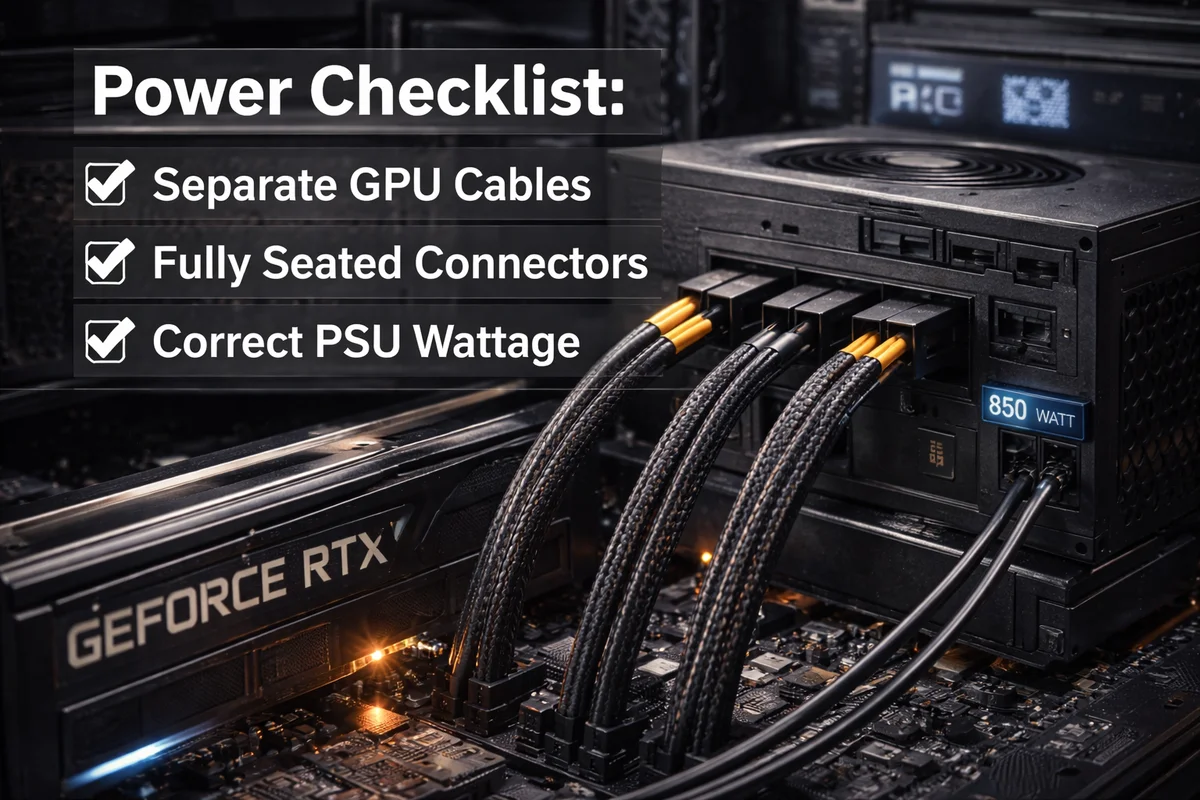
Power checklist
- Use only the PSU’s original modular cables (never mix cables from another power supply)
- Make sure GPU power connectors are fully seated
- Prefer separate PCIe cables to the GPU (avoid daisy-chaining)
- Confirm PSU wattage is appropriate and from a reputable brand
Quick test: If crashes disappear when you cap FPS or slightly reduce GPU power limit, power delivery is a prime suspect.
Step 2: Temperatures & Throttling (CPU/GPU Hotspots Matter)
Overheating doesn’t always look like “high average temps.” In modern builds, crashes often come from hotspots or VRM/VRAM temperatures that spike rapidly.
- Check GPU hotspot and memory temps
- Verify CPU temps and cooler mounting
- Clean dust filters and heatsinks
- Confirm proper airflow direction
If you suspect thermals, we can re-paste, pad, and optimize airflow:
Step 3: RAM Instability (XMP/EXPO Is Great… Until It Isn’t)
One of the most common “gaming-only crash” causes is RAM running slightly unstable with XMP/EXPO enabled.
Fast RAM stability fixes
- Disable XMP/EXPO temporarily to test
- Re-enable but reduce speed one step
- Update BIOS (very important for DDR5)
- Confirm RAM sticks are in correct slots (A2/B2)
Pro tip: Crashes during loading screens or shader compilation often point to memory instability.
Step 4: GPU Drivers & Settings
Driver problems can look like hardware failure. Always reset to known-good settings before replacing parts.
- Clean reinstall GPU drivers
- Disable overlays temporarily
- Reset GPU overclocks/undervolts to stock
- Test with slight power-limit reduction

Step 5: BIOS & CPU Stability
Motherboards may apply aggressive boost behavior by default. Returning the system to stock is a critical test.
- Update BIOS
- Disable auto-OC features
- Install chipset drivers
- Check Windows Event Viewer
Quick Fix Checklist
- Reset CPU/GPU to stock
- Check PSU cables and connectors
- Verify temps and airflow
- Disable XMP/EXPO
- Clean reinstall drivers
- Update BIOS
FAQ: Gaming PC Crashes Under Load
Why does my PC crash only when gaming?
Gaming triggers maximum boost behavior and power draw that idle use does not.
What does an instant reboot mean?
Most often power delivery or severe instability.
Should I disable XMP/EXPO?
Yes — it’s one of the most common causes of gaming-only crashes.
When It’s Time to Call ElitePC NJ
If you’re tired of guessing, we can diagnose the root cause quickly and correctly.
- GPU/CPU upgrades & cabling
- Thermal service & airflow optimization
- RAM tuning
- BIOS & driver validation
Phone: 973-594-6105