Computer suddenly slow? Few things are more frustrating than turning on your computer and realizing that everything suddenly feels sluggish. Programs take longer to open, your browser struggles with multiple tabs, file transfers drag, and even simple actions like opening the Start menu feel delayed. If your computer suddenly slow issue appeared out of nowhere, there is usually a reason behind it — and in many cases, the fix is more straightforward than people think.
A slow computer can be caused by software clutter, startup overload, malware, outdated drivers, low free storage, overheating, or aging hardware. Windows 11 systems can also feel slower after updates if background tasks, indexing, or driver conflicts pile up. The good news is that once you isolate the bottleneck, you can usually make meaningful improvements without reinstalling Windows. In this guide, we will walk through the most common reasons a PC slows down unexpectedly, how to diagnose each one, and which fixes provide the biggest performance gains.
Why Too Many Startup Programs Make Your Computer Suddenly Slow
One of the most common answers to the question why is my computer suddenly slow is hidden in the Startup tab of Task Manager. Many apps quietly add themselves to startup so they can launch every time Windows boots. Cloud sync utilities, launchers, update checkers, messaging apps, manufacturer utilities, RGB software, and even printer software can all pile up. Each one consumes a little CPU time, memory, and disk activity — and together they make your system feel bogged down before you even start working.
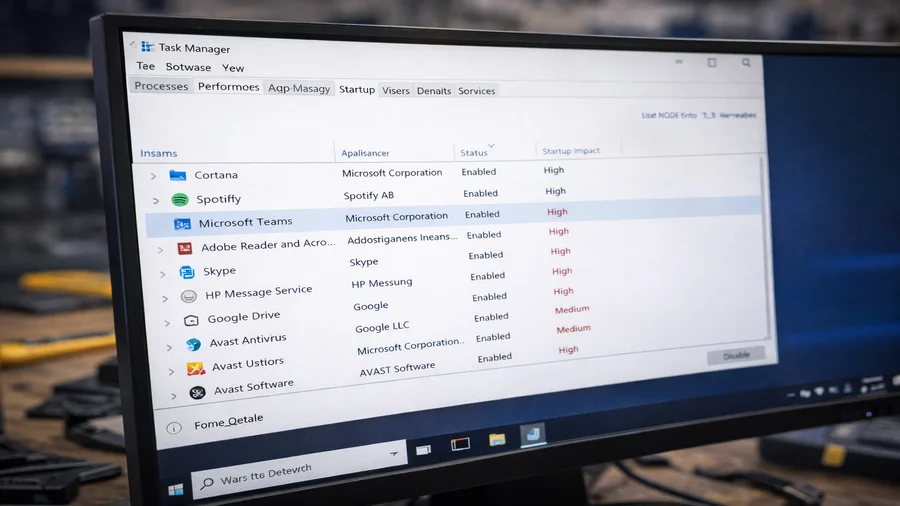
What to check first
- Open Task Manager with Ctrl + Shift + Esc
- Go to the Startup tab
- Sort by Startup impact
- Disable anything you do not truly need at boot
Reducing startup programs is one of the fastest and safest ways to improve a slow computer scenario. If the system still feels sluggish after startup cleanup, a deeper computer diagnostic service can help identify whether the root cause is software, hardware, or both.
Background Apps, RAM Pressure, and Hidden Resource Usage
Sometimes a computer is not slow because of startup apps alone — it is slow because too many services keep running in the background. Browsers with many tabs, sync tools, antivirus suites, game launchers, RGB utilities, widgets, indexing, and communication platforms can all keep memory usage elevated. When RAM fills up, Windows begins leaning more heavily on virtual memory, which is significantly slower than physical memory.
Advanced users should also watch for unusual spikes in disk usage, CPU usage, or memory compression inside Task Manager. If one process constantly jumps to the top, that is often the clue to the real bottleneck. Systems with only 8 GB of RAM can also struggle with modern multitasking, and in some cases upgrading memory or storage — such as through an SSD upgrade with cloning — can significantly improve responsiveness.
Malware, Browser Hijackers, and Hidden Crypto Miners
If your PC running slow all of a sudden coincides with pop-ups, browser redirects, overheating at idle, or unusually high CPU usage, malware should be considered immediately. Modern malware is not always obvious. Some threats hijack browser traffic, install scheduled tasks, or quietly run background processes that consume system resources.
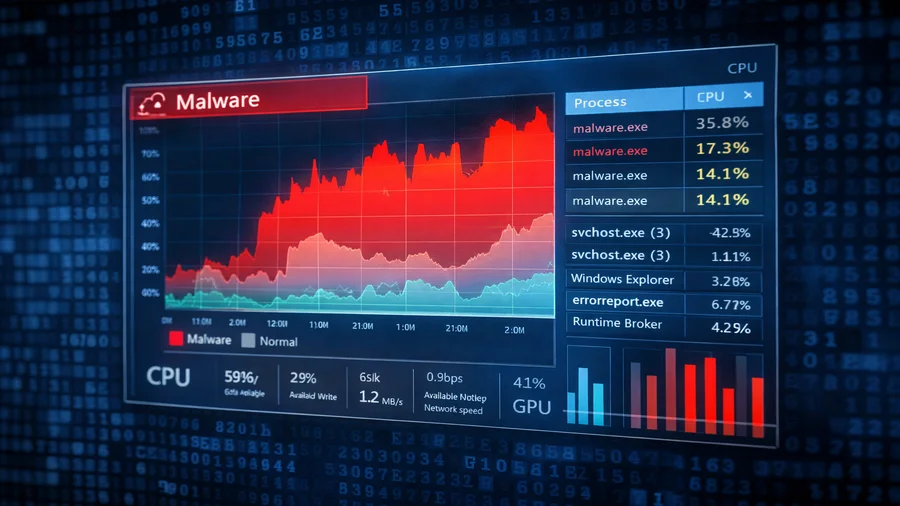
A few warning signs that often point toward malware include:
- CPU usage staying high when nothing obvious is running
- Browser tabs opening strange pages or search engines changing
- Unfamiliar apps appearing in startup or installed programs
- Security tools disabled or blocked
- Fans running loudly even when the computer is idle
If these symptoms appear together, a malware infection should be investigated quickly. Professional computer repair services can safely diagnose and remove malicious software. Microsoft also provides official Windows performance guidance, and security research from Malwarebytes explains how hidden malware processes impact system performance.
Storage Bottlenecks: HDD vs SSD, Low Free Space, and File System Clutter
Another major cause of a suddenly slow computer is storage performance. If the system drive is nearly full, Windows has less space available for temporary files, updates, and virtual memory. Performance can degrade even further if the system is still using a traditional mechanical hard drive.
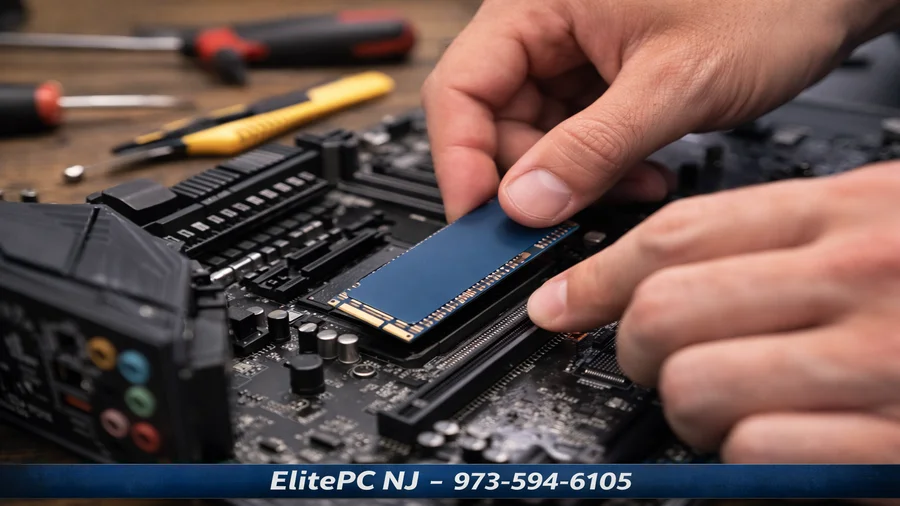
Solid State Drives eliminate the mechanical movement of traditional drives and dramatically improve boot times, application launches, file transfers, and system responsiveness. Upgrading storage is often one of the most noticeable performance improvements you can make. That is why an SSD upgrade with cloning service is such a powerful upgrade for older systems. Readers experiencing broader performance issues may also find helpful insights in our related guide on fixing overheating, slowdowns, and battery issues.
Overheating and Thermal Throttling
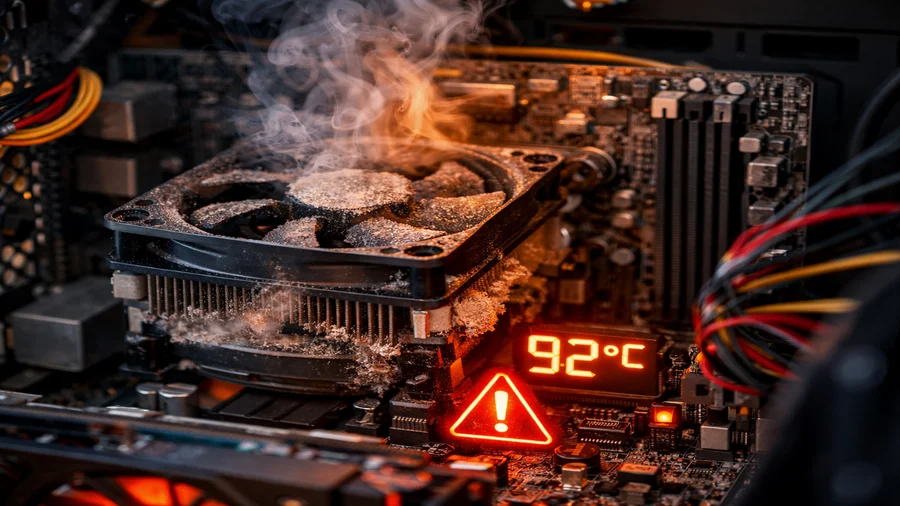
Overheating and thermal throttling can make a computer suddenly slow even during simple tasks.
Overheating is another frequently overlooked reason computers suddenly feel slow. When processors or graphics chips reach high temperatures, the system automatically reduces performance to protect the hardware. This behavior is known as thermal throttling, and it can cause noticeable slowdowns even during normal tasks.
Dust buildup, clogged cooling vents, aging thermal paste, and failing fans can all contribute to overheating. Laptops are particularly vulnerable because their cooling systems are compact and easily restricted by dust. Cleaning the cooling system or restoring proper airflow can often resolve these issues.
If overheating persists, professional computer repair services can diagnose cooling issues before they lead to hardware damage.
Windows Updates, Drivers, and Advanced Performance Tweaks
Sometimes a computer becomes slow after a Windows update or driver change. Updates can trigger background indexing, system optimization tasks, or compatibility problems with older drivers. Graphics, chipset, and storage drivers are particularly important because they directly affect system performance.
- Review startup programs regularly
- Set power mode to Best Performance when troubleshooting
- Check Task Manager for sustained disk usage at 100%
- Update graphics, chipset, and storage drivers
- Reduce visual effects on older systems
- Run security scans if suspicious processes appear
For gaming systems, performance tuning and hardware maintenance can also make a significant difference. Readers interested in optimizing gaming hardware can explore our Gaming PC Maintenance guide or visit our gaming PC repair page.

When to Stop Troubleshooting and Call a Pro
While many slow computer problems can be resolved with basic troubleshooting, some situations require deeper diagnostics. Hardware failures, persistent malware, storage problems, and overheating issues can all produce similar symptoms.
If the system continues to run slowly after startup cleanup, malware scans, and storage maintenance, a professional evaluation can identify the real bottleneck. Services like Computer Diagnostic Service and Computer Repair Services can pinpoint the cause and restore proper performance. You can also contact ElitePC NJ for assistance.
Final Thoughts
If your computer suddenly slow issue appeared recently, the cause is usually startup overload, malware, overheating, or storage limitations. Identifying the bottleneck early can restore performance quickly and prevent future slowdowns.
Frequently Asked Questions
Why is my computer suddenly so slow?
The most common causes are too many startup apps, heavy background processes, malware, low free storage, outdated drivers, overheating, or an old hard drive. In many cases, more than one issue is happening at once.
How do I fix a slow Windows computer?
Start by disabling unnecessary startup apps, checking Task Manager for resource-heavy processes, scanning for malware, freeing disk space, and making sure drivers are current. If the system still feels slow, a diagnostic service can identify the real bottleneck.
Can malware make my computer slow?
Yes. Malware can consume CPU, memory, and disk resources in the background, interfere with browsers, and trigger abnormal heat or fan noise. Slow performance can absolutely be a symptom of infection.
Is upgrading to an SSD really worth it?
In most older systems, yes. An SSD upgrade is one of the biggest performance improvements you can make because it speeds up booting, app launches, updates, and overall system responsiveness.
When should I get professional help for a slow computer?
If the machine is freezing, crashing, overheating badly, or still slow after cleanup, it is time for a proper diagnosis. Professional help is also the smarter route if you suspect malware, storage failure, or business-critical downtime.
External resources: Microsoft performance tips for Windows, Tom’s Guide on Efficiency Mode, Malwarebytes security resources.