Windows 11 “Spyware-Like” Settings? (2026) What It Tracks — And How to Lock It Down
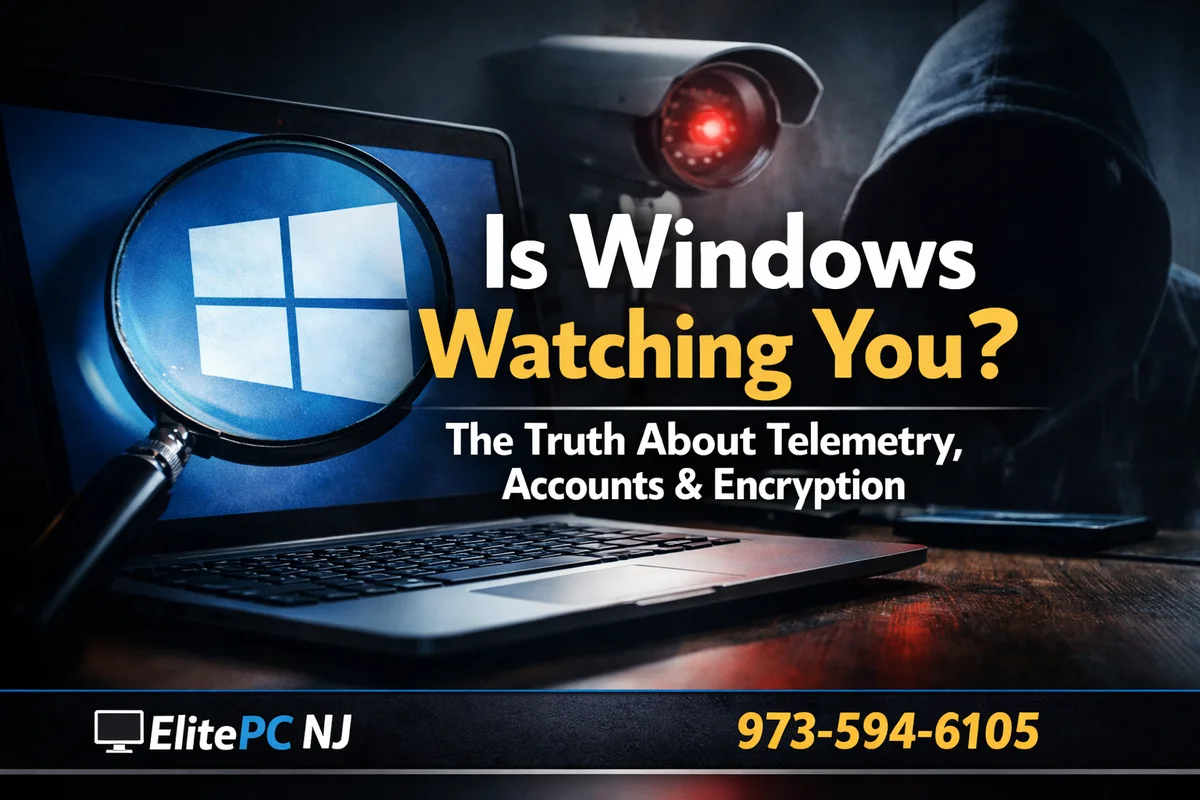
Let’s be real about Windows 11 Privacy: modern Windows can feel like it runs on a system similar to spyware — not because it’s secretly “hacking you,” but because it collects a lot of diagnostic + usage data by default, and many settings are buried.
This article breaks down what’s confirmed, what’s often misunderstood, and the practical steps you can take to reduce data sharing—especially for home users and small businesses.
Important note: There’s no such thing as “0 data” on any modern OS. The goal for Windows 11 Privacy is control + clarity: reduce what you don’t want, keep what you need for security and stability.
Quick Definitions (For Non-Tech Users)
Telemetry / Diagnostic Data: information Windows sends to Microsoft to help improve reliability, security, compatibility, and features. Some is required; some is optional depending on settings and edition.
Advertising ID: a unique ID used to personalize ads in apps (you can turn this off).
Cloud Sync: settings, passwords, OneDrive files, Edge data, and more can sync when you sign in with a Microsoft account.
Why People Call Windows “Spyware-Like” (The Honest Version)
People usually mean one of these:
- Windows sends diagnostic data unless you reduce it (and some data is required).
- Microsoft account sign-in can increase cloud syncing and personalization.
- Lots of background services communicate with Microsoft services for updates, security, SmartScreen reputation checks, cloud features, etc.
- Confusing defaults (it’s not always obvious what’s enabled).
That said, Microsoft documents diagnostic data collection and Windows 11 privacy controls, and you can meaningfully reduce what’s shared if you configure things correctly.
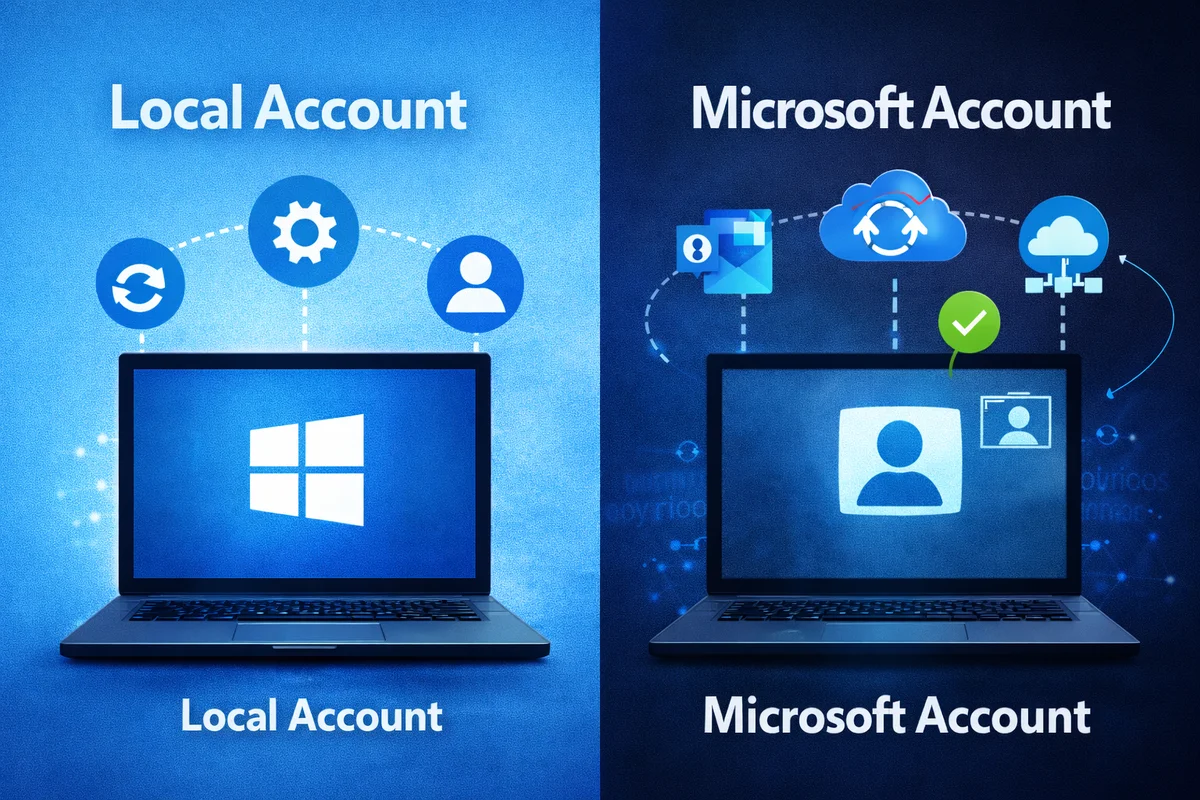
Microsoft Account vs Local Account: Why Local Can Be Better for Privacy
Local account = your login stays on the PC. It typically reduces automatic syncing of settings, Edge data, OneDrive prompts, and account-based personalization.
Microsoft account = more convenience (sync, recovery, store apps, OneDrive), but more cloud integration by design.
- Better privacy: local account (plus tightened privacy settings)
- Better convenience: Microsoft account (plus privacy tuning)
Pro tip: For many small businesses, we recommend local accounts + managed cloud services intentionally (instead of “everything automatically synced because Windows asked”).
Does Windows Take Screenshots of Your PC?
This is where the internet gets loud. The truth is more specific:
- Standard Windows features do not continuously “screenshot everything” for everyone.
- However, Microsoft’s Recall feature on Copilot+ PCs has been described as using periodic “snapshots” to let you search what you previously saw—leading to major privacy discussion and changes around security/opt-in controls.
If you’re a business user or privacy-focused user, you should understand whether Recall exists on your specific PC and whether it’s enabled.
How to Reduce Data Sharing (Without Breaking Windows)
Here are the practical, “safe-first” moves we recommend most often:
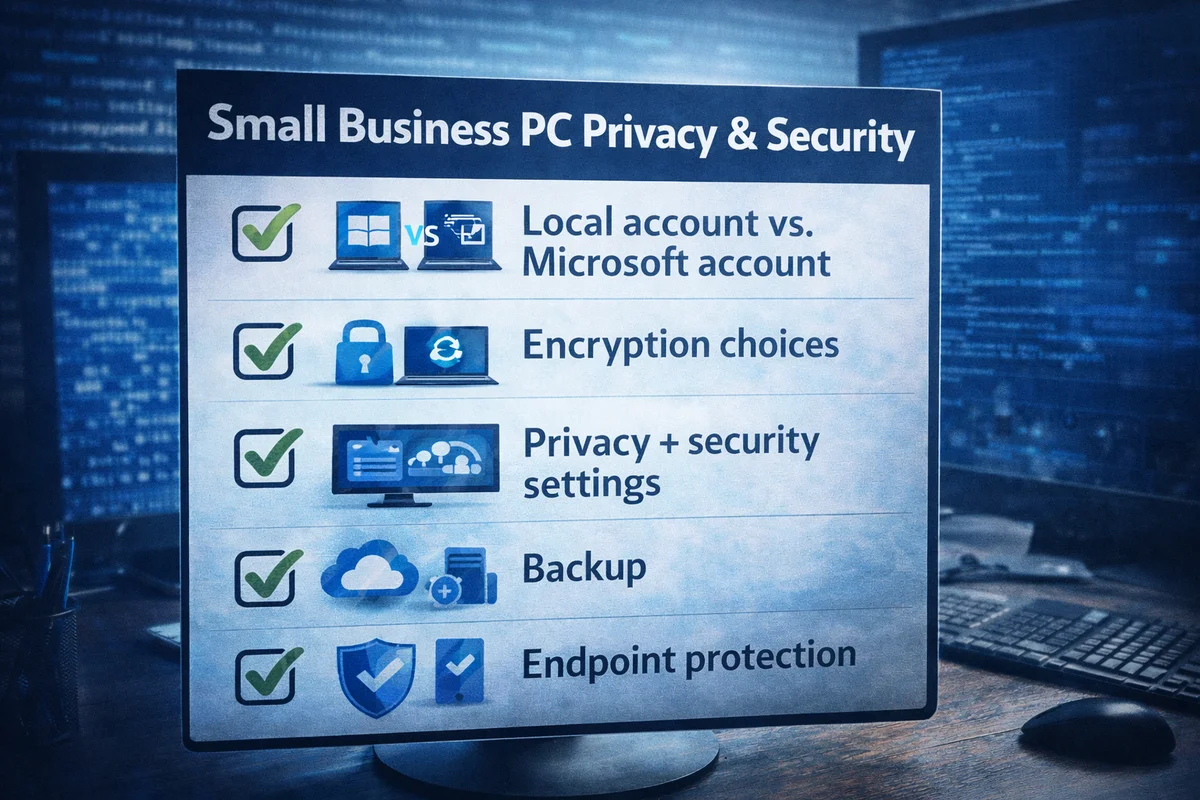
1) Tighten Privacy Settings (The Big 5)
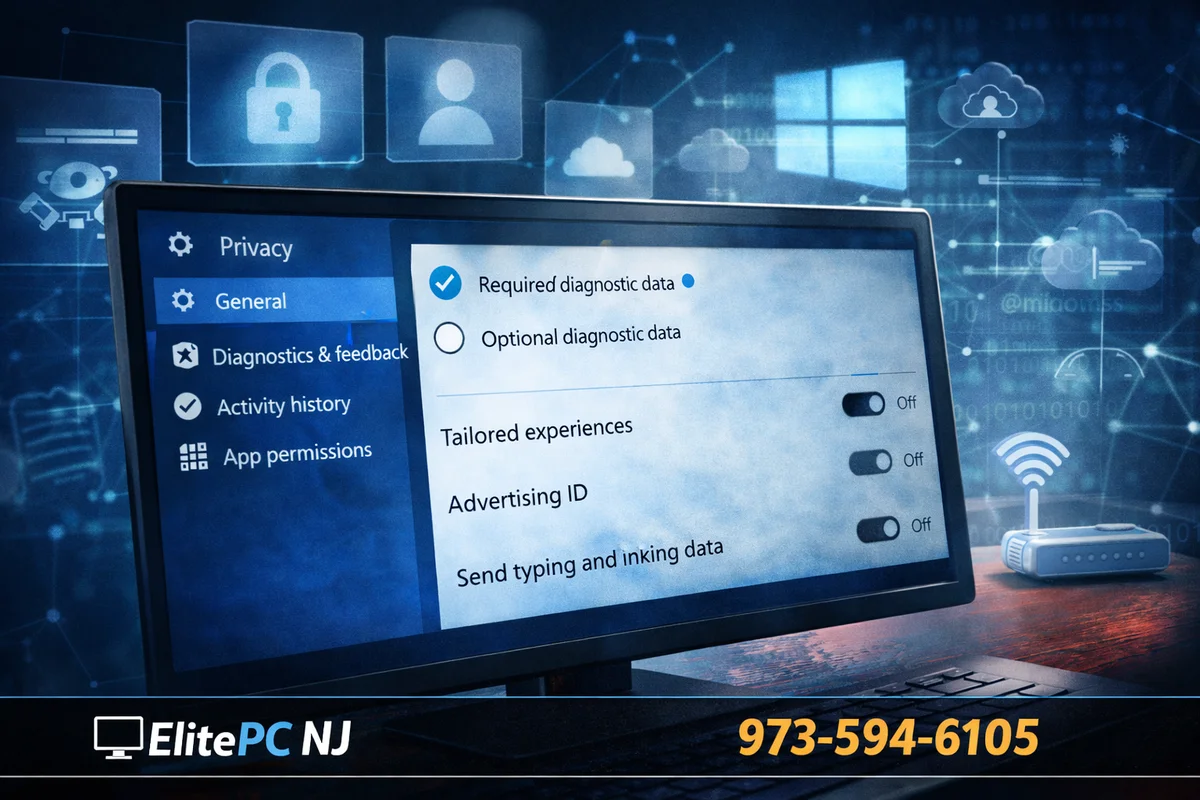
- Set Diagnostic Data to the lowest allowed option for your edition
- Disable “Tailored experiences” / personalization where available
- Turn off Advertising ID
- Review app permissions (Location, Microphone, Camera, Contacts)
- Disable unnecessary cloud syncing (OneDrive/Edge) if you don’t want it
Microsoft provides documentation and tools that let you see and manage diagnostic data.
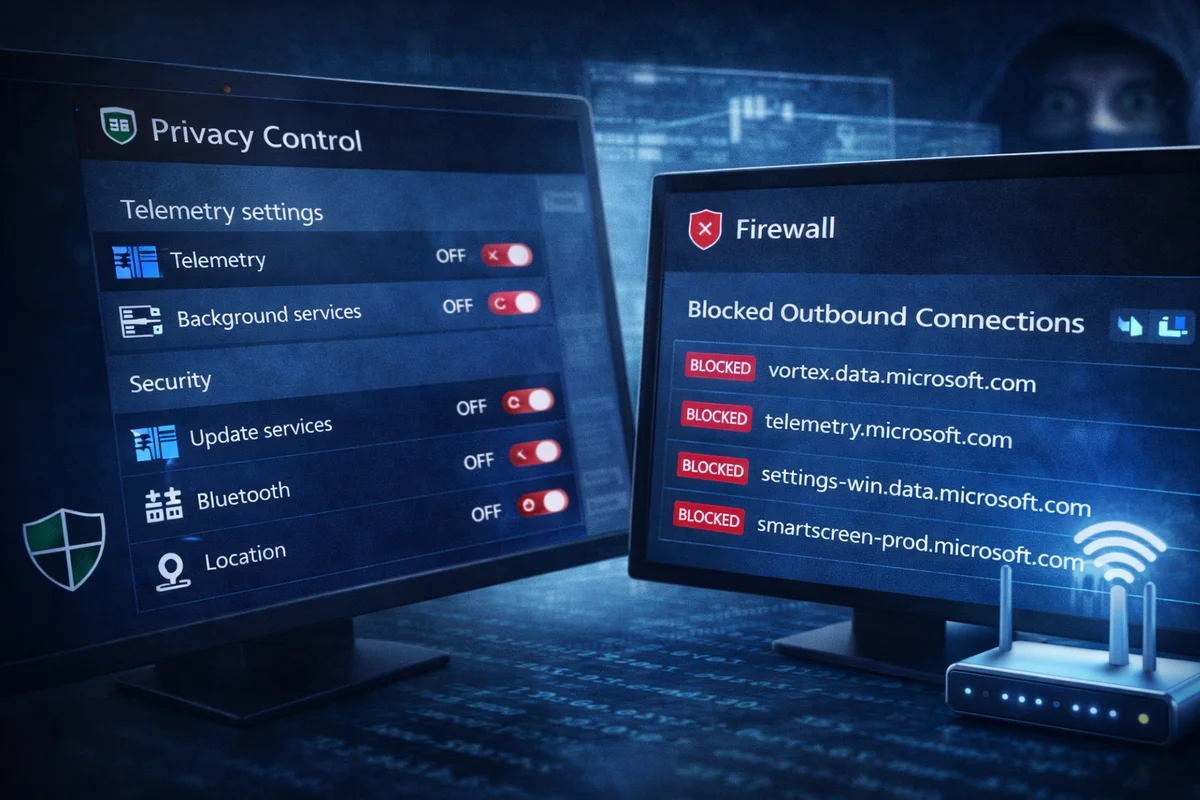
2) Block “Noise” Without Breaking Updates
Old-school “block everything” guides can cause update failures, Microsoft Store issues, and sign-in problems. If you want tighter control:
- Use a reputable privacy tool that focuses on toggles (not random host file nukes)
- Prefer Windows Pro + Group Policy controls (cleaner and reversible)
- For businesses: use a proper firewall + DNS filtering approach and document your changes
Popular Windows 11 privacy toggle tools people use include O&O ShutUp10++ (works on Windows 10/11). Use carefully and keep a restore point.
BitLocker: Does It Reduce Performance?
BitLocker encrypts your drive, which can add overhead. On most modern systems with hardware acceleration, the impact is often small for everyday use—but workloads like very heavy disk I/O or older hardware can feel it more.
Our practical take: for business laptops, BitLocker is usually worth it for data protection. For gaming desktops, it’s optional—if you’re chasing absolute maximum storage benchmarks, you may prefer encryption off (or test both ways).
“Shocking” Background Behaviors People Don’t Realize
Here are the real-world items that surprise most non-technical users (without veering into misinformation):
- Diagnostics/telemetry can be enabled by default (and not everyone knows where it is)
- Some security features check reputations/URLs (SmartScreen-style protections)
- Cloud account sign-in can sync settings and activity across devices if enabled
- New features (like Recall on certain hardware) can change privacy expectations, so you should re-check settings after major updates
The key takeaway isn’t “panic.” It’s: assume defaults are not privacy-optimized, then configure Windows intentionally.
(ElitePC NJ Services)
Need help locking down Windows for home or business? Start here:
FAQ
Is Windows 11 literally spyware?
No. But it can feel spyware-like because it collects diagnostic data and promotes cloud integration by default. The honest solution is tuning privacy settings and using the account type you prefer.
Does using a local account stop telemetry?
It can reduce cloud syncing and account-based personalization, but Windows may still send some diagnostic data depending on your settings and edition.
Will blocking services break Windows updates?
It can if you use aggressive scripts or host-file “nukes.” Safer approaches are privacy toggles, Group Policy (Pro editions), and documented firewall/DNS controls.
Does BitLocker slow down gaming?
Usually only slightly on modern systems, but it depends on hardware and workload. If you’re performance-obsessed, test your game load times with BitLocker on vs off.
Want ElitePC NJ to Lock It Down for You?
If you want Windows configured for privacy + stability (without breaking updates), we can do a clean privacy hardening setup, security baseline, and performance tune.
Contact: https://www.elitepcnj.com/contact/
Phone: 973-594-6105