Windows 11 is packed with powerful features most users never discover. These Windows 11 hidden tips can dramatically improve productivity, streamline workflow, and even help speed up Windows 11 without installing third-party software. Whether you use your PC for business, gaming, or everyday tasks, unlocking these hidden Windows 11 features can make your system feel smoother and more responsive.
Hidden Windows 11 Productivity Features You Should Be Using
Snap Layouts for Better Multitasking
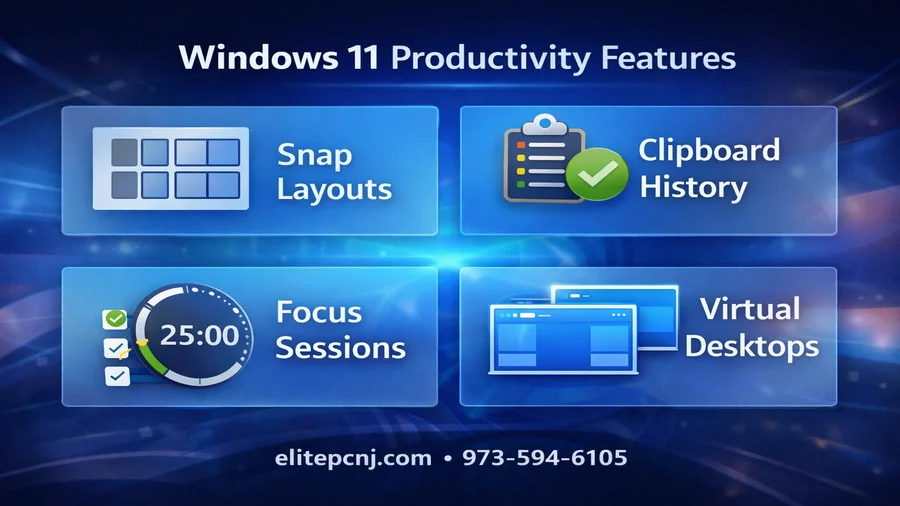
Snap Layouts allow you to organize multiple windows into clean grid arrangements instantly. Hover over the maximize button and choose your layout. This is one of the most overlooked Windows 11 productivity tips and is extremely useful for managing spreadsheets, email, and browser tabs simultaneously.
Clipboard History (Win + V)
Press Win + V to access Clipboard History. Instead of copying one item at a time, Windows 11 stores multiple copied items so you can paste previous content easily. This hidden feature saves significant time for business owners and power users handling quotes, documents, and repetitive tasks.
Focus Sessions for Deep Work
Focus Sessions, built into the Clock app, allow you to create distraction-free work blocks. Combined with notification control, this Windows 11 hidden setting helps increase productivity without additional software.
Virtual Desktops
Virtual Desktops let you separate workspaces for business, gaming, or personal use. This keeps your system organized and reduces clutter, improving mental focus and efficiency.
Windows 11 Performance Tweaks That Improve Speed
Efficiency Mode in Task Manager
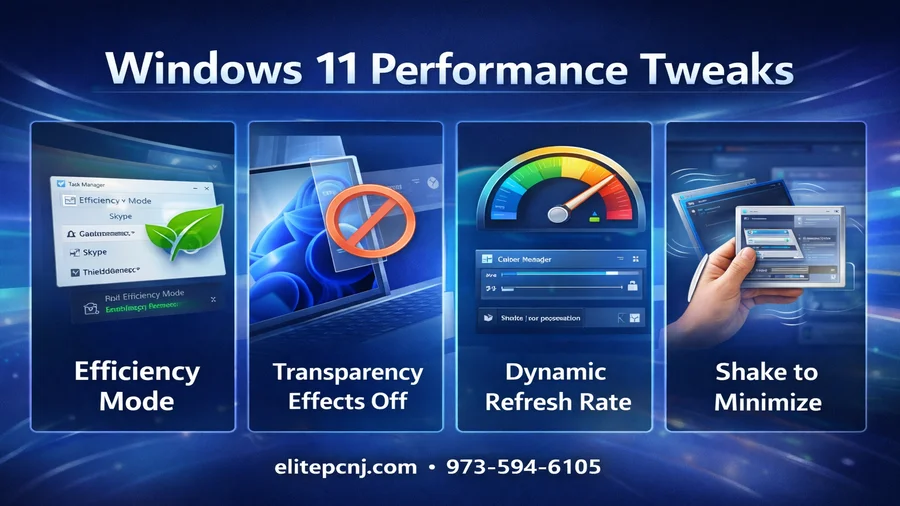
Efficiency Mode allows you to reduce CPU usage from background apps. Open Task Manager (Ctrl + Shift + Esc), right-click a process and enable Efficiency Mode. This is one of the most effective Windows 11 performance tweaks for systems that feel sluggish.
Disable Transparency Effects
Transparency effects look modern but consume system resources. Disabling them under Settings → Accessibility → Visual Effects can noticeably improve responsiveness, especially on older hardware.
Dynamic Refresh Rate
If your monitor supports it, Dynamic Refresh Rate automatically balances smooth visuals with energy efficiency. This helps both battery life and performance.
Shake to Minimize
Click and shake a window to minimize all others instantly. It’s a small trick, but it improves workflow speed dramatically.
Helpful Hidden Windows 11 Tools
Voice Typing (Win + H)
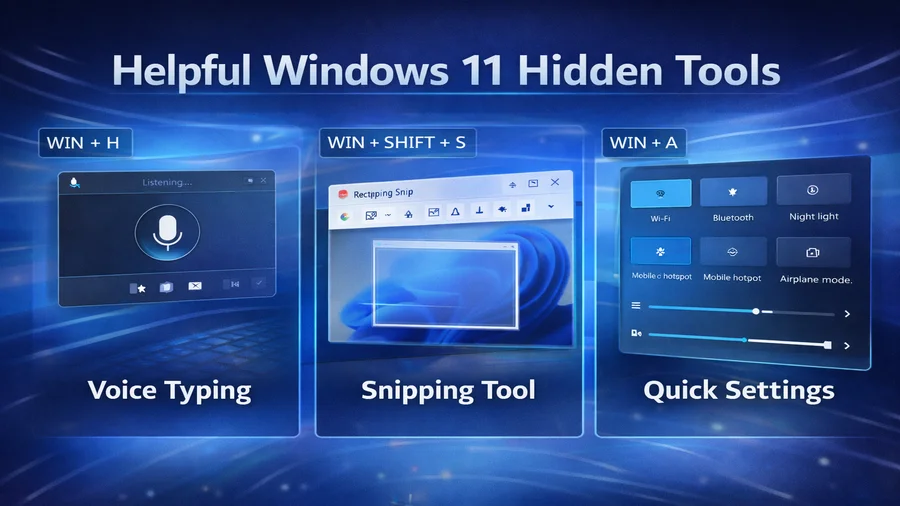
Voice typing allows you to dictate emails and documents quickly. Windows 11’s built-in speech recognition has improved significantly and works well for everyday productivity tasks.
Snipping Tool (Win + Shift + S)
Capture custom screenshots instantly. Ideal for documentation, tutorials, and troubleshooting.
Quick Settings Panel
The Quick Settings panel gives instant access to Wi-Fi, Bluetooth, Night Light, and other controls. Expanding these toggles provides deeper system control without navigating full settings menus.
When To Consider Professional Optimization
If your system still feels slow after applying these Windows 11 hidden tips, deeper optimization may be needed. Our Computer Services and Business IT Services help businesses and home users ensure their systems run at peak performance.
Need help? Contact ElitePC NJ or call 973-594-6105 for professional support.
Frequently Asked Questions
How do I enable Clipboard History in Windows 11?
Go to Settings → System → Clipboard and turn on Clipboard History. Then press Win + V to access it.
Does Efficiency Mode actually speed up Windows 11?
Yes. It reduces CPU usage from background apps, freeing resources for active tasks.
Are these Windows 11 hidden tips safe to use?
Yes. These are built-in features provided by Microsoft and are safe to enable or disable.