Gaming PCs in 2026 are faster and more efficient than ever—but that also means small mistakes can cause bigger problems: random crashes, overheating, stuttering, or even hardware failure.
This guide covers practical tips we regularly recommend at ElitePC NJ to help your gaming PC run cooler, quieter, and more reliably.
Quick Checklist Before You Start
- Confirm your PSU wattage and connectors match your GPU and CPU setup
- Update motherboard BIOS (when appropriate) and install chipset drivers
- Verify airflow direction (front/bottom intake, rear/top exhaust)
- Use monitoring tools to confirm temperatures and stability
If you want professional help with upgrades, thermals, diagnostics, and tuning, visit: https://www.elitepcnj.com/gaming-pc-repair/.
Tip #1 (Critical): Only Use the Modular Cables That Came With Your Power Supply
This is one of the most important safety rules in PC building:
Never use modular PSU cables from another power supply—even if they fit.
Modular cables are not standardized. The connector may look identical, but the internal pinout can be different across brands and even across models from the same brand. Using the wrong cable can send voltage to the wrong pins and instantly damage parts.
- Can permanently destroy your GPU, SSD, or motherboard
- Can cause short circuits, no-boot conditions, and burnt connectors
- Often results in non-warranty damage because it’s considered user error
Best practice: Use only the cables from your PSU box. If you lost them, buy replacements made specifically for your exact PSU model.

Tip #2: Don’t Let Temperatures Steal Your FPS
Heat causes throttling. When your CPU or GPU gets too hot, it reduces clock speed automatically to protect itself—which can look like random FPS drops or stuttering.
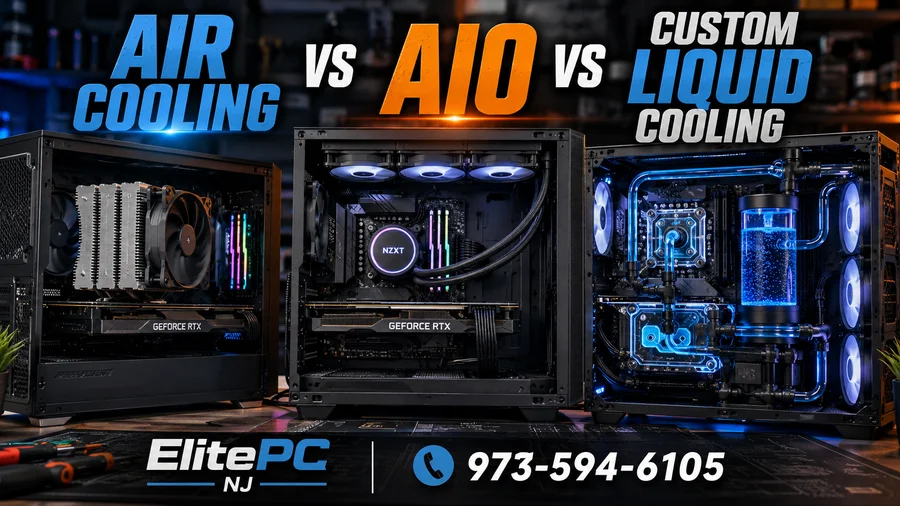
- Clean dust filters and heatsinks regularly
- Make sure intake fans aren’t fighting exhaust fans
- Replace old thermal paste when temps rise over time
- Set sensible fan curves (quiet at idle, aggressive under load)
Need help with thermals and airflow optimization? Check out: https://www.elitepcnj.com/computer-repair/.
Tip #3: Enable XMP/EXPO (But Do It the Right Way)
Most systems run RAM slower than advertised until you enable the correct memory profile in BIOS:
- XMP for most Intel platforms
- EXPO for many AMD DDR5 kits
This can improve 1% lows and overall smoothness in many games—especially CPU-sensitive titles.
If enabling XMP/EXPO causes crashes, you may need a BIOS update, slightly lower speed, or manual tuning.

When It’s Time to Call a Pro
If your gaming PC is crashing, overheating, shutting down during games, or you’re planning an upgrade and want it done right the first time, we can help with:
- Professional GPU/CPU upgrades and cable management
- Thermal paste / thermal pad service
- Stability testing (CPU/GPU/RAM) and tuning
- BIOS configuration and driver optimization
Contact ElitePC NJ: https://www.elitepcnj.com/contact/
Phone: 973-594-6105