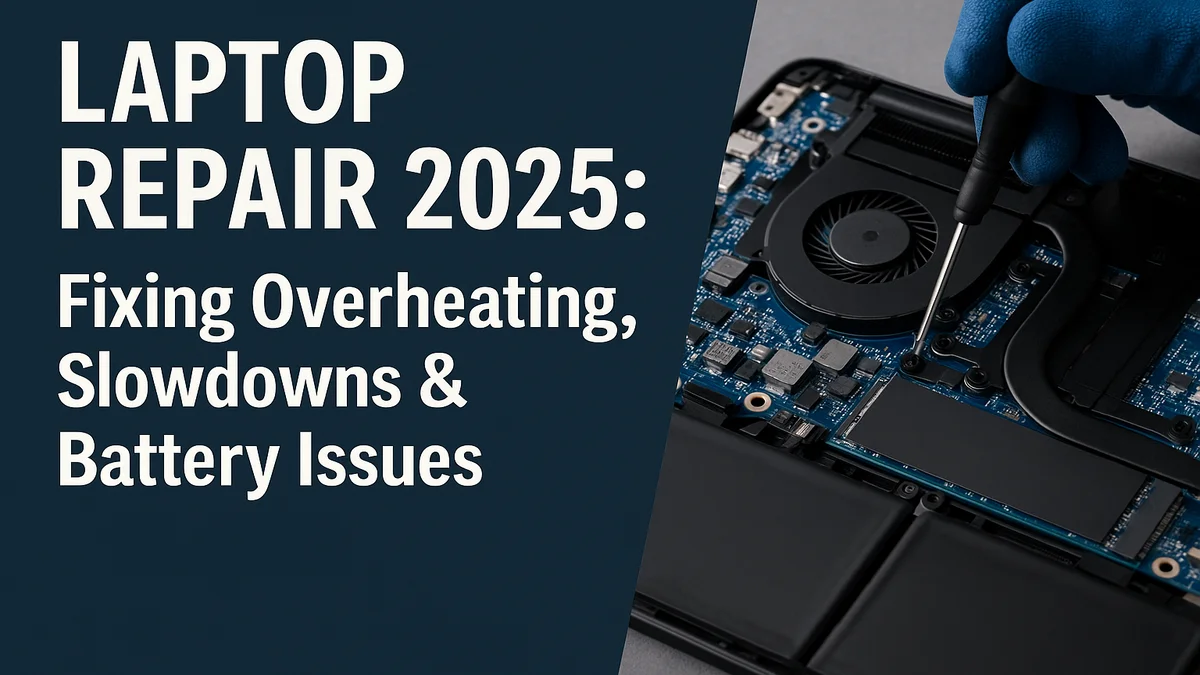
If your laptop feels like a space heater or takes ages to load even simple apps, you’re not alone. Modern laptops pack huge power in tiny frames, and without regular care, heat, dust, and outdated parts can cut their lifespan dramatically. Here’s your 2025 guide to fixing common laptop performance issues before they become serious repairs.
1) Overheating: the #1 laptop killer
Overheating remains the top cause of laptop failure. Thermal throttling slows your CPU and GPU to prevent damage—but you can fix it:
- Clear vents and fans: Use compressed air through the vents to remove dust. Hold the fans in place so they don’t free-spin.
- Reapply thermal paste: If the laptop is 3+ years old, new high-quality paste can lower temps by 5–10 °C.
- Use a cooling pad: A raised stand with fans improves airflow significantly during gaming or editing.
- Need Help? We can fix your Laptop overheating issues! 973-594-6105
2) Sluggish performance & slow boot times
Mechanical hard drives are the biggest bottleneck in older laptops. Upgrading to a solid-state drive (SSD) can transform performance instantly.
- SSD upgrade: Replace the old drive with a SATA or NVMe SSD depending on your model.
- RAM upgrade: 8GB is the new baseline in 2025; 16GB gives you smoother multitasking.
- Clean startup programs: Open Task Manager → Startup → disable unnecessary entries.
“A single SSD upgrade can make a five-year-old laptop feel brand new.”
3) Battery not holding charge?
Laptop batteries degrade with every charge cycle. When capacity dips below 70%, it’s time for a replacement. You can check battery health in Windows PowerShell:
powercfg /batteryreportThis generates a full battery wear report.
- Keep charge between 20–80% for best longevity.
- Avoid leaving the laptop plugged in 24/7.
- If the battery swells or gets unusually hot, stop using it immediately.
4) Software tune-up for 2025
Even powerful laptops slow down when cluttered with background apps or outdated drivers. Quick fixes:
- Remove trialware, OEM bloat apps, and unused antiviruses.
- Run Storage Sense or Disk Cleanup.
- Update GPU drivers, chipset drivers, and BIOS firmware.
- Scan with Windows Defender or Malwarebytes.
5) When DIY ends and pro repair begins
If your laptop won’t power on, overheats severely, or needs motherboard-level work, it’s time for a professional. ElitePC NJ offers fan replacements, board-level repairs, tune-ups, data recovery, and battery replacements.
Click here to contact ElitePC NJ.
Mini-FAQ
Q: How often should vents be cleaned?
A: Every 4–6 months.
Q: Can software alone fix overheating?
A: No—physical cleaning does the heavy lifting.
Q: Is upgrading RAM still worth it in 2025?
A: Yes. For Windows 11, 16GB is ideal.
Need expert laptop repair in North Jersey?
We service Garfield, Lodi, Elmwood Park, Clifton, Saddle Brook, and all nearby towns.
Website: https://www.elitepcnj.com
Email: service@elitepcnj.com
Phone: 973-594-6105